
Webhook Setup
Webhooks deliver real-time event notifications from the K-LINK Customer Support Platform to your services. When something happens in K-LINK — a new contact, an inbound message, a room being solved — we send an HTTP POST request to your endpoint with the event payload.
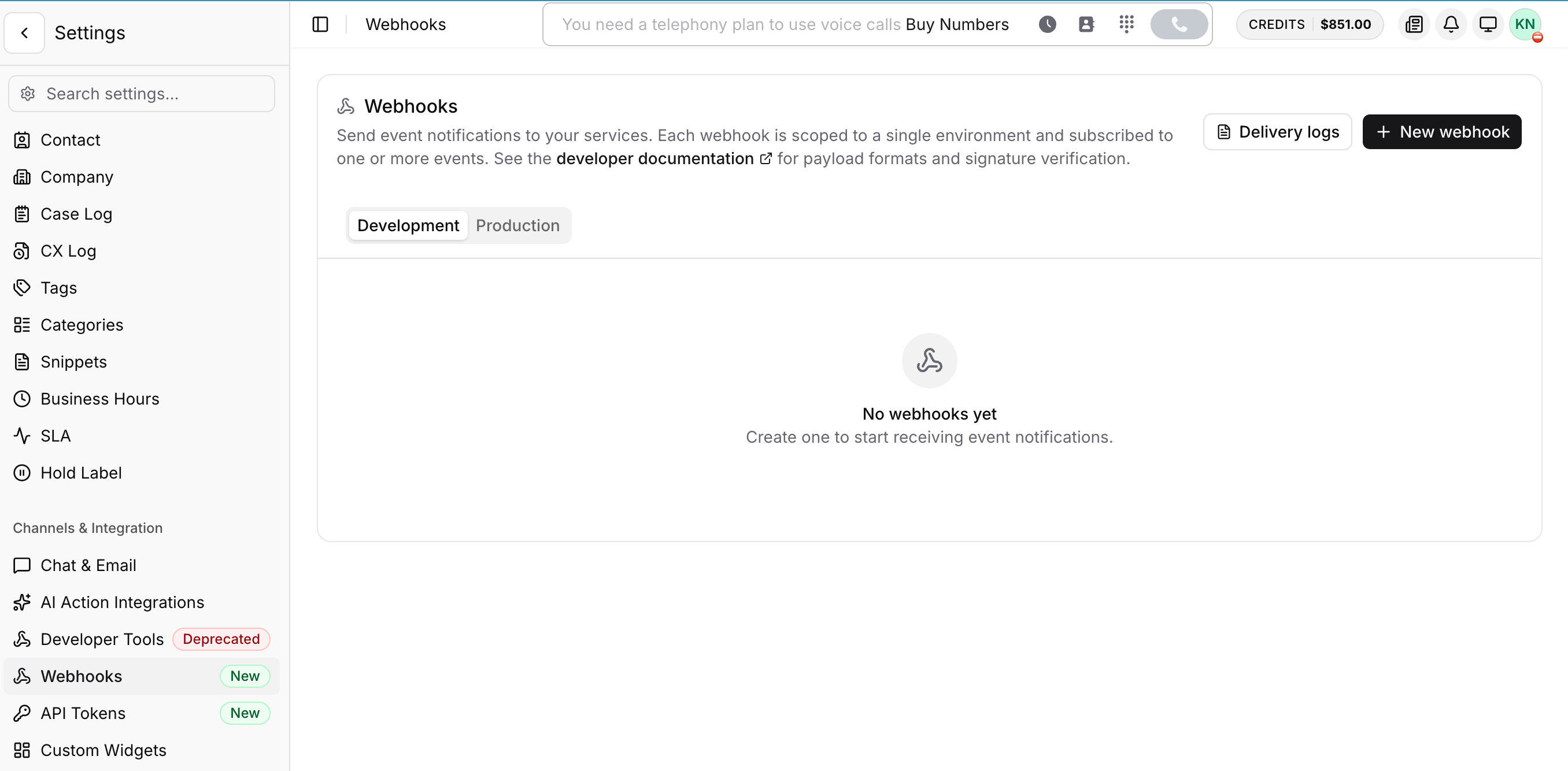
What changed: Webhooks are now managed directly under Settings → Webhooks. You no longer need to create a Developer App first. Each webhook is its own resource, scoped to a single environment, with its own signing secret and event subscriptions.
Quick start
- Open Settings → Webhooks in the K-LINK dashboard.
- Pick the environment tab — Development or Production.
- Click New webhook.
- Fill in the form (name, endpoint, events, auth) and click Create webhook.
That's it — your endpoint will start receiving events as soon as they happen.
For payload schemas and full reference, see the Webhook Events and Schema.
Concepts
- Webhook: a single delivery destination — name, endpoint URL, environment, auth mode, and a list of subscribed events.
- Environment: each webhook belongs to either Development or Production. The two are isolated — events fired in one environment never reach a webhook in the other.
- Signing secret: a per-webhook secret used to sign each request with HMAC-SHA256 so you can verify the request came from K-LINK. It is generated when the webhook is created and can be revealed or rotated from the row menu.
- Subscription: the binding between a webhook and a specific event in the catalog. A webhook must have at least one subscription.
Creating a webhook
From Settings → Webhooks, click New webhook and complete the form.
| Field | What to enter |
|---|---|
| Name | A recognizable name for this webhook (e.g. Order updates, CI deployment bot). |
| Method | webhook (HTTP POST — the default) or websocket. |
| Endpoint URL | A publicly reachable HTTPS URL that accepts POST requests, e.g. https://yourdomain.com/webhooks/endpoint. |
| Authentication | None, Basic auth, or Custom header — see below. |
| Events | One or more events from the catalog. You can also toggle All within a group. |
A webhook must be subscribed to at least one event before you can save it.
Authentication
Choose how K-LINK should authenticate to your endpoint. This is in addition to the HMAC signature — signature verification is always recommended on top.
- None — K-LINK sends no auth header. Recommended only when verifying via the HMAC signature is sufficient.
- Basic auth — K-LINK sends
Authorization: <your token>on every request. - Custom header — K-LINK sends a header you choose, e.g.
X-API-Key: secret-value.
Signing secret
When a webhook is created, K-LINK generates a unique HMAC-SHA256 signing secret for it. Every outgoing request includes an X-Signature header derived from this secret — verifying it proves the request came from K-LINK and that the payload was not tampered with.
To view or copy the secret:
- In Settings → Webhooks, click the ⋯ menu on the row.
- Choose Reveal signing secret.
- Use the eye icon to unmask, then the Copy button to copy it.
Store the secret in your application configuration alongside other secrets.
Verifying webhook signatures (recommended for security)
When you receive a request:
- Read the signature from the
X-Signatureheader. - Compute the expected HMAC-SHA256 over the canonical request representation (see Signature validation below for the canonicalization rules).
- Compare in constant time. Only process the request if they match.
const crypto = require('crypto');

function verifyWebhookSignature(payload, signature, secret) {
  const hash = crypto
    .createHmac('sha256', secret)
    .update(JSON.stringify(payload))
    .digest('hex');

  return crypto.timingSafeEqual(
    Buffer.from(hash, 'hex'),
    Buffer.from(signature, 'hex'),
  );
}
The snippet above is the simple case. For the canonical form K-LINK actually signs (method + URL + normalized query + normalized body), see Signature validation.
Available events
You subscribe to events when creating or editing a webhook. The catalog is grouped:
Contact events
- All events — every contact-related event.
- New Contact Created — a new contact was added.
- Contact Updated — an existing contact's fields changed.
Message events
- All events — every message-related event.
- Inbound Message Received — a customer sent a message.
- Outbound Message Sent — an agent or automation sent a message.
- New Message Comment — an agent left an internal comment mentioning a user.
Room events
- All events — every room-related event.
- Room Solved/Closed — a room was solved or closed by an agent.
Request format
Webhook requests are HTTP POST with a JSON payload containing:
- Event type and timestamp
- The affected resource (contact, message, or room details)
- Event metadata and context
Response expected
Your endpoint must respond with an HTTP 2xx status to acknowledge receipt. Anything else is treated as a failure and triggers retries — see Error handling and Retry mechanism.
Managing webhooks
Each row in Settings → Webhooks has a ⋯ menu with:
- Edit — change name, endpoint, method, auth, or event subscriptions. You cannot change the environment after creation.
- Reveal signing secret — view and copy the HMAC secret.
- View logs — jump to Delivery logs filtered to this webhook.
- Delete — permanently remove the webhook and all its subscriptions.
Delivery logs
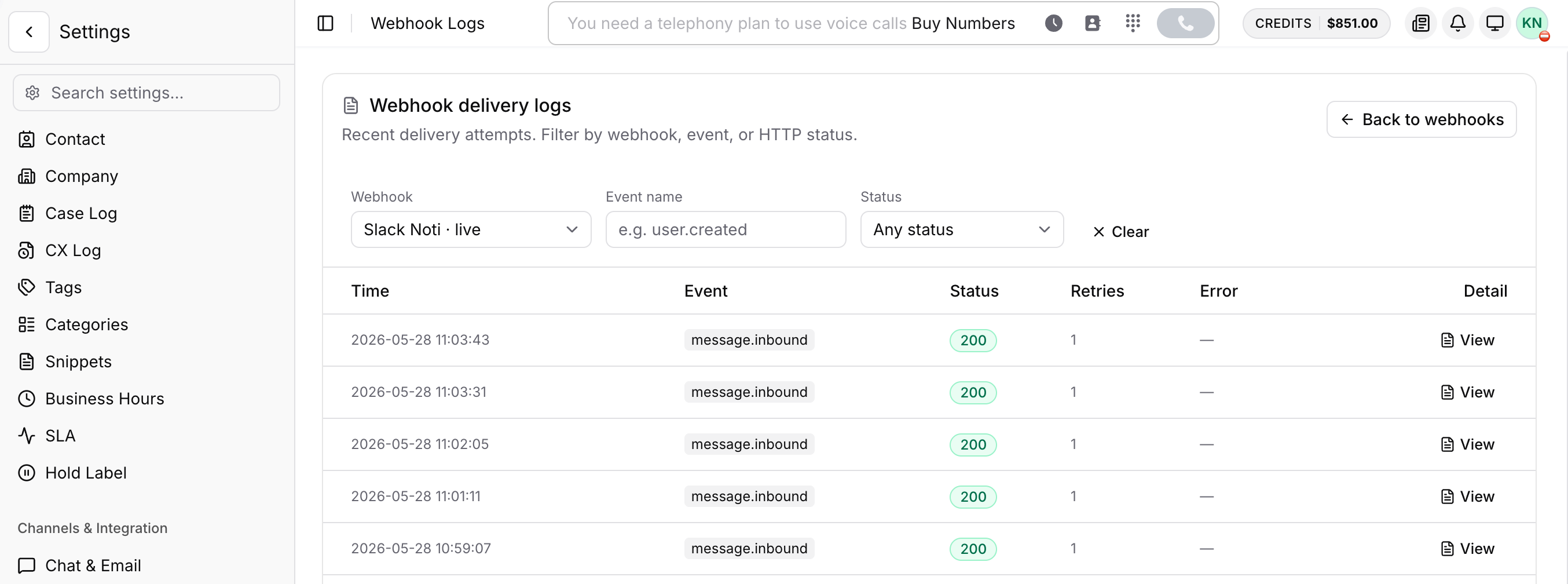
Open Settings → Webhooks → Delivery logs (or click View logs on any row) to inspect recent deliveries.
You can filter by:
- Webhook — show deliveries for a single webhook.
- Event name — e.g.
contact.created. - Status —
2xx Success,4xx Client error, or5xx Server error.
Each row shows the delivery time, event name, HTTP status, retry count, and a short error preview. Click View for the full request body, error message, and exception trace.
Rotating the signing secret
If you suspect a secret has been exposed:
- Open Settings → Webhooks.
- Open the ⋯ menu on the affected row and choose Reveal signing secret.
- Click Regenerate (the action will revoke the current secret).
- Update your application configuration with the new secret immediately — incoming requests will start arriving signed with the new key.
The old secret is invalidated as soon as you regenerate. Plan a brief deploy window if your verifier is single-secret.
Error handling
If your endpoint does not return 2xx (or does not respond at all), the delivery is recorded as a failure. If a webhook accumulates more than 50 failures in 1 hour, K-LINK will automatically pause it — you will need to re-enable it from the row menu after investigating.
Allow our outbound IPs through your firewall. Production traffic originates from 51.79.216.180. Do not block this address.
Retry mechanism
If a delivery does not yield an HTTP 2xx within 10 seconds, K-LINK retries up to 3 times at intervals of 30 s, 60 s, and 90 s. The delivery is marked as permanently failed if no 2xx arrives after the third retry.
Signature validation
K-LINK signs each request over a deterministic representation of the request, so you must reconstruct the exact same string before computing the HMAC.
The canonical form
Method + URL + NormalizedQuery + NormalizedBody
- Method — uppercase (e.g.
POST). - URL — scheme + host + path. Excludes query string.
- NormalizedQuery — query keys sorted alphabetically. Multi-value keys have their values sorted alphabetically and formatted as
key=[val1 val2](Go slice formatting), joined by&. - NormalizedBody — the JSON body re-serialized with keys sorted alphabetically (recursively for nested objects), no whitespace between separators.
Reference implementation (Python)
import hmac
import hashlib
import json
from urllib.parse import urlparse, parse_qs

def normalize_query(query_params: dict) -> str:
    if not query_params:
        return ""

    # Go's url.Values sorts keys alphabetically
    sorted_keys = sorted(query_params.keys())
    parts = []

    for key in sorted_keys:
        values = query_params[key]
        if isinstance(values, str):
            values = [values]

        # Go's NormalizeQuery sorts the slice of values for each key
        sorted_values = sorted([str(v) for v in values])
        # Go format: key=[val1 val2]&
        parts.append(f"{key}={sorted_values}")

    return "&".join(parts)


def sort_dict_recursive(data):
    """Matches the SortJson logic in Go."""
    if not isinstance(data, dict):
        return data
    return {k: sort_dict_recursive(data[k]) for k in sorted(data)}


def normalize_json_body(body: dict) -> str:
    if not body:
        return ""
    sorted_body = sort_dict_recursive(body)
    # separators=(',', ':') ensures no extra whitespace, matching Go's json.Marshal
    return json.dumps(sorted_body, separators=(',', ':'))


def generate_signature(method: str, full_url: str, body: dict, secret: str) -> str:
    """
    Replicates the 'signed' string concatenation from the Go signer:
    signed := fmt.Sprintf("%s%s%s%s", method, url, NormalizeQuery(query), body)
    """
    parsed_url = urlparse(full_url)

    # 1. Base URL (scheme + host + path)
    base_url = f"{parsed_url.scheme}://{parsed_url.netloc}{parsed_url.path}"

    # 2. Normalize query
    query_dict = parse_qs(parsed_url.query)
    normalized_query = normalize_query(query_dict)

    # 3. Normalize body
    normalized_body = normalize_json_body(body)

    # 4. Build the signing string
    signature_payload = f"{method.upper()}{base_url}{normalized_query}{normalized_body}"

    # 5. HMAC-SHA256, return hex
    return hmac.new(
        secret.encode("utf-8"),
        msg=signature_payload.encode("utf-8"),
        digestmod=hashlib.sha256,
    ).hexdigest()
Compare the result with the value in the incoming X-Signature header. Use a constant-time comparison (hmac.compare_digest in Python, crypto.timingSafeEqual in Node.js) to avoid timing attacks.
Best practices
- Verify signatures — Always validate the
X-Signatureheader before processing. - Be idempotent — A retry may deliver the same event twice. Use the event ID to de-duplicate.
- Process asynchronously — Acknowledge the request immediately, then process the payload in a background job. This keeps you under the 10-second timeout.
- Log everything — Keep your own delivery log; cross-reference with K-LINK's Delivery logs when debugging.
- Keep secrets secret — Treat the signing secret like a password. Never commit it; never log it.
- Respond fast — Stay well under the 10-second timeout to avoid retries.
Testing
To smoke-test a new webhook:
- Create the webhook in the Development environment.
- Trigger the corresponding action in K-LINK (create a test contact, send a test message, solve a test room).
- Open Settings → Webhooks → Delivery logs and verify the entry shows a
2xxstatus. - Confirm your server logs received the request and the signature verification passed.
If a delivery shows 4xx/5xx, click View in Delivery logs for the request body, error message, and exception trace.
`